How to Add Custom schema Markup in WordPress without plugins
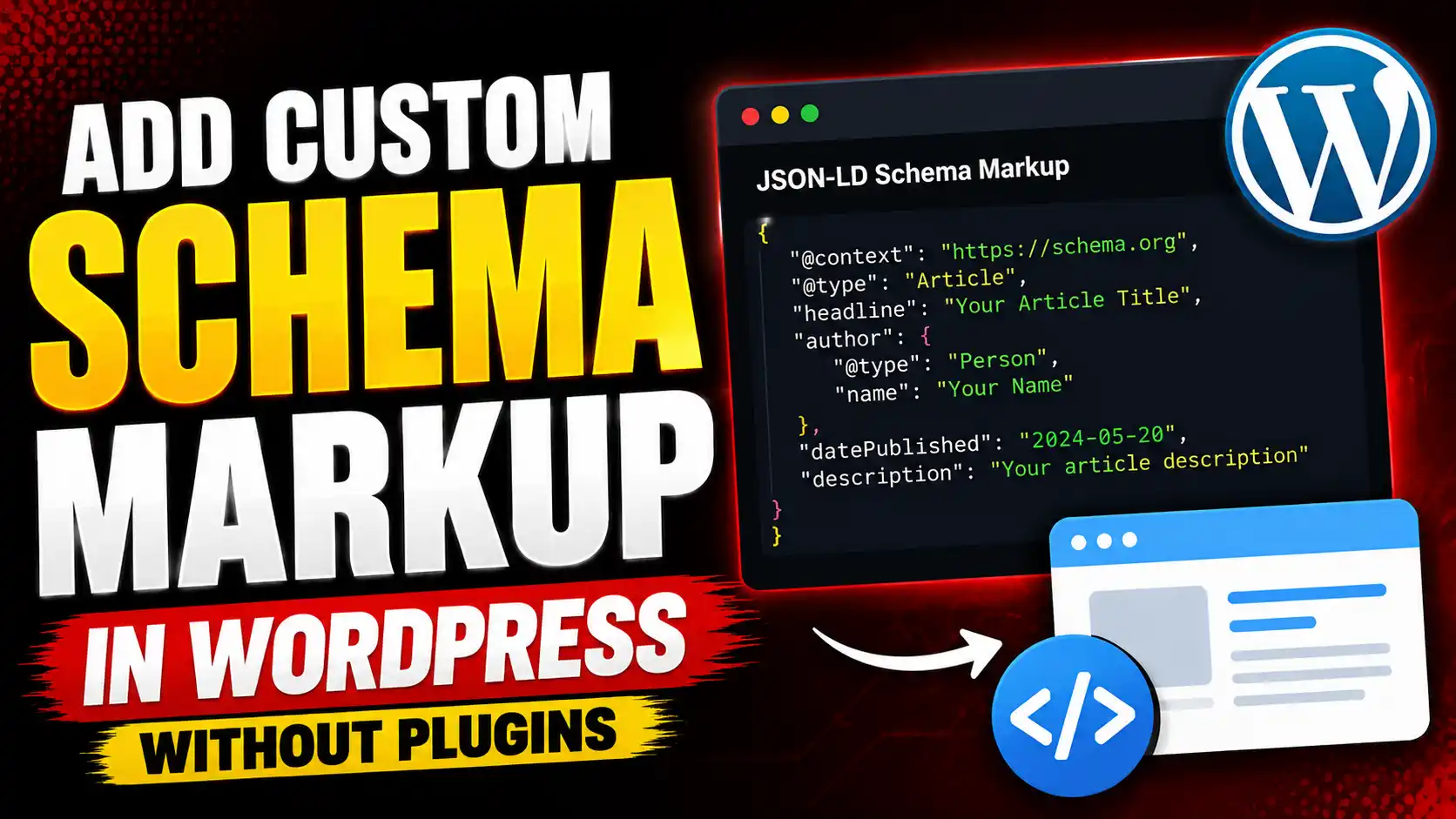
Want to add custom schema markup to WordPress without installing another plugin?
You can add JSON-LD structured data manually to individual WordPress posts and pages using a small PHP snippet and WordPress custom fields. This gives you complete control over which schema appears on each page without depending on a dedicated schema plugin.
If you want your WordPress website to stand out in Google search results with star ratings, FAQs, events, or business info, adding schema markup (also called structured data) can help.
In this guide, I’ll show you how to add custom schema markup in WordPress without a plugin, how to add different schema to individual posts, and how to test your structured data before publishing.
What is Schema Markup?
Schema markup is a special code (usually in JSON-LD format) that helps search engines understand your content better.
For example, structured data can tell Google that a page contains:
Search engines can use this additional information when understanding and displaying your pages in search results.
Google supports JSON-LD, Microdata, and RDFa for structured data, but recommends JSON-LD in most cases because it is generally easier to implement and maintain.
JSON-LD normally looks something like this:
<script type="application/ld+json">
{ "@context": "https://schema.org",
"@type": "Article", "headline": "Example Article Title" }
</script>
When using the method in this tutorial, however, you will paste only the JSON portion into the WordPress custom field. The PHP code will automatically add the <script> Wrapper for you.
Does Schema Markup Improve SEO?
Schema markup helps search engines understand the entities and information contained on a page and can make eligible content available for enhanced search appearances known as rich results.
However, adding schema does not guarantee that Google will display a rich result. Your structured data must accurately describe content that users can actually see on the page and must follow Google’s structured data guidelines.
So the goal should not be to add as much schema as possible.
Instead, add the most relevant schema type for the content on each page.
Why Add Schema Markup Manually in WordPress?
Many WordPress SEO plugins automatically generate basic structured data. That is perfectly fine for many websites.
Manual schema becomes useful when you need more control.
For example, you might want to add:
Adding custom schema manually also allows you to apply different structured data to different posts without installing another WordPress plugin.
How to Add Custom Schema Markup in WordPress (Without Plugins)
Use the Below PHP code directly in the Appearance > Theme file editor >Function.php file.
// Custom Schema Markup Field
function output_custom_schema_in_head() {
    if (is_single() || is_page()) {
        global $post;
        $schema = get_post_meta($post->ID, 'custom_schema', true);
        if (!empty($schema)) {
            echo '<script type="application/ld+json">' . $schema . '</script>';
        }
    }
}
add_action('wp_head', 'output_custom_schema_in_head');
After that you need to open the Post editor and enable the Custom field option from Preference as shown in this video.
Now you need to add custom_schema in the name field and you need to paste your schema code and add it to the blog post. Follow the video to learn more.

Final Tips
How to Check Whether the Schema Was Added Correctly
After updating the post, open the published page in your browser.
Right-click and select: View Page Source
Then search for: application/ld+json
You should find your schema markup inside the HTML.
If you don’t see it, check that:
- The custom field name is exactly custom_schema.
- The JSON is valid.
- The code was added to the active theme or child theme.
- Your cache has been cleared.
Never assume structured data is valid simply because the page loads normally.
JSON errors can easily prevent search engines from correctly processing the markup.
Google recommends testing structured data with its Rich Results Test. For general Schema.org validation, you can also use the Schema Markup Validator.
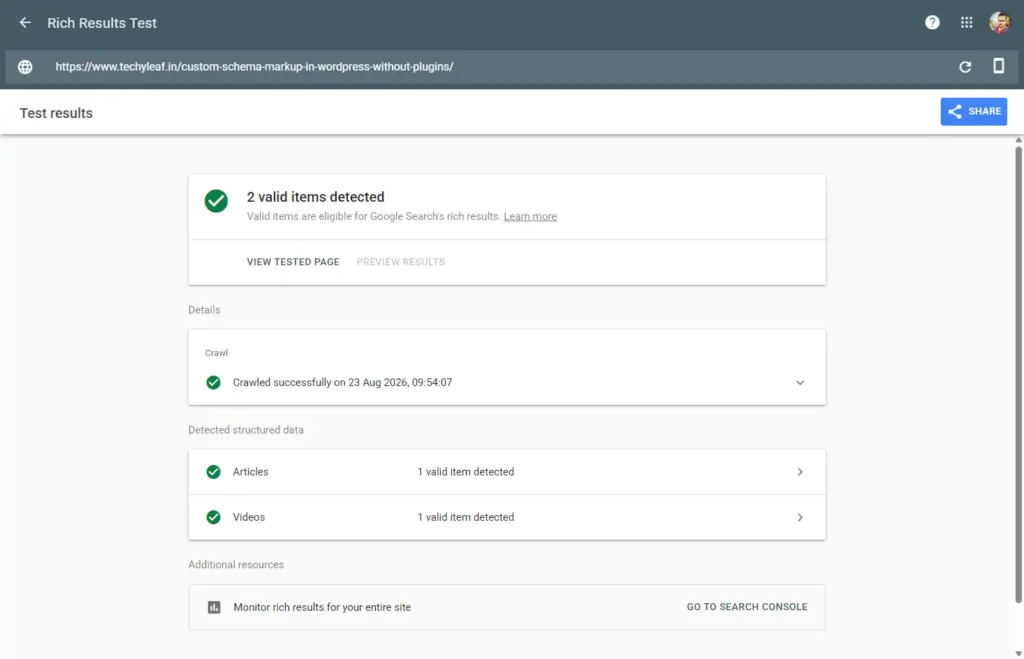
After publishing your schema:
- Open the Rich Results Test.
- Enter the URL of your WordPress page.
- Run the test.
- Review detected structured data.
- Fix any errors.
Warnings do not always mean that your markup is invalid, but errors involving required properties should be investigated.
After Google recrawls the page, you can also monitor supported structured-data enhancements through Google Search Console.
Common Schema Markup Mistakes to Avoid
One of the biggest mistakes is adding schema that does not match the visible page content. Google specifically requires structured data to be representative of the content users can see.
Another common issue is duplicate markup. Your WordPress theme, WooCommerce installation, or SEO plugin might already create structured data, so check existing output before adding custom schema.
You should also avoid fake ratings, fake reviews, irrelevant schema types, outdated information, and fields copied from another website without editing them.
Finally, remember to update structured data when important information on the page changes.
Your schema should describe the page you have today, not an older version of it.
Conclusion
Adding custom schema markup in WordPress without plugins may seem technical, but it’s totally doable. It gives you more control, improves your SEO, and helps search engines understand your site better.
Just follow the steps above carefully, and test your code before publishing.
Have any questions or want help with your schema code? Let me know in the comments!



![What is Backlink with Example [Infographics]](https://www.techyleaf.in/wp-content/uploads/2022/06/What-is-Backlink-768x432.jpg)