How to Fix Layout Shifts Caused by Ads and Images in Blogger
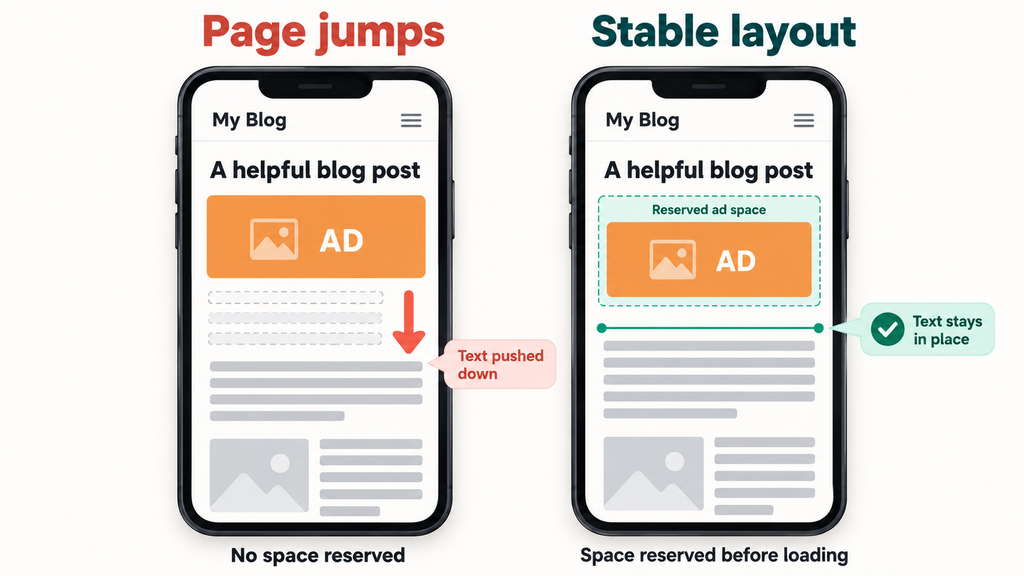
You open a blog post and start reading. Suddenly, an advertisement appears above the paragraph, pushing everything down. A moment later, an image loads and the page jumps again.
These movements are called layout shifts. They make a website frustrating to use, especially on a phone.
If your Blogger website has this problem, the fix usually starts with one thing: give images and ads enough space before they load.
In this guide, you will learn how to find the cause of layout shifts, fix common image problems, manage ad placements, and check whether your changes work.
What Is Cumulative Layout Shift?
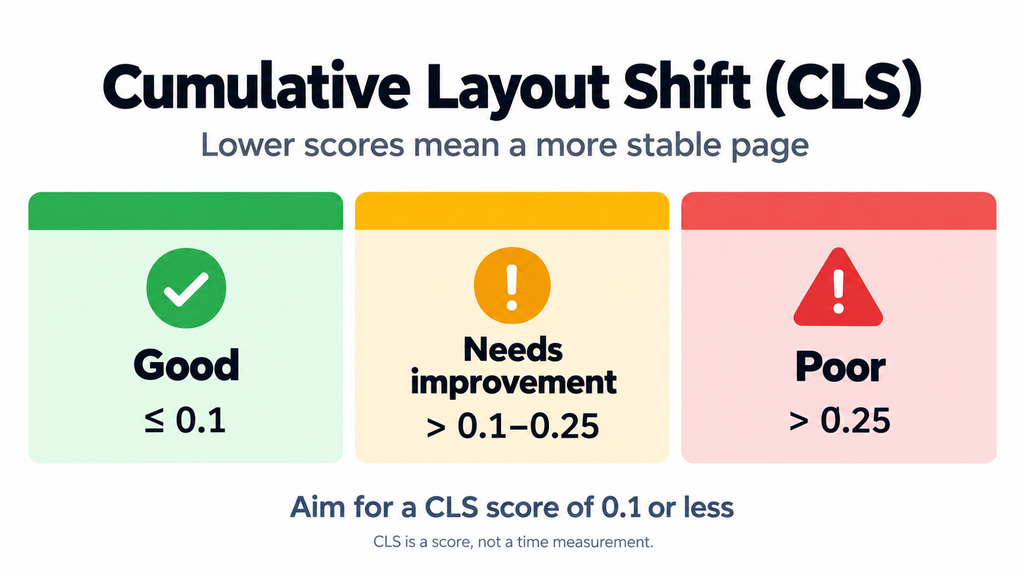
Cumulative Layout Shift, or CLS, measures unexpected movement of visible content on a page. It is one of Google’s Core Web Vitals.
CLS considers how much content moves and how far it moves. It is a score, not a measurement in seconds.
| CLS score | Rating |
|---|---|
| 0.1 or less | Good |
| Above 0.1 to 0.25 | Needs improvement |
| Above 0.25 | Poor |
Google recommends achieving a CLS score of 0.1 or less at the 75th percentile of visits, assessed separately for mobile and desktop. In simple terms, at least 75% of visits should meet that target. Articles
Does CLS affect SEO?
Google’s ranking systems use Core Web Vitals, but a good score does not guarantee higher rankings.
Fixing layout shifts supports a better page experience. It should go alongside useful content, clear navigation, and the other work needed to make a helpful website.
Why Ads and Images Make Blogger Pages Jump
A browser needs to know how much space an element will occupy.
If an image has no dimensions, or an ad placement starts with no reserved height, the browser may position the next paragraph too high. When that element loads, the paragraph moves.
Common problems to check include:
| What you notice | What to investigate |
|---|---|
| Text jumps when a photo appears | Missing image dimensions |
| The article moves after an ad loads | Ad space was not reserved |
| Content jumps while scrolling | Lazy-loaded images or ads |
| Homepage cards change height | Thumbnail sizing |
| Text moves upward after a delay | An empty ad container was removed |
| Headings wrap differently after loading | Fonts or late styling changes |
Images without dimensions, dynamically inserted content, and ads without reserved space are established causes of layout shifts. web.dev
Step 1: Find the Element Causing the Shift
Avoid adding random “CLS fix” scripts before finding the problem.
Check a blog post in PageSpeed Insights
Open PageSpeed Insights and test a published article.
Check both mobile and desktop results. Also test your homepage and a post containing several images or ads.
PageSpeed Insights provides two kinds of information:
- Field data: Experiences collected from real visitors.
- Lab data: Results from a simulated test.
The field data covers a rolling 28-day period. Where available, check whether the report shows data for the specific URL or the wider origin. A low-traffic page may not have enough data for its own report. developers.google.com
Record the page in Chrome DevTools
For a closer look:
- Open the published page in Chrome.
- Right-click and select Inspect.
- Open the Performance panel.
- Record a page reload.
- Continue recording while you scroll through the article.
- Stop and inspect the Layout shifts track and Layout shift culprits insight.
Chrome can identify shifted elements and possible causes. Remember that the paragraph highlighted as moving may be the victim: an image or ad above it could be the real problem. developer.chrome.com
Test with ads allowed to load. An ad blocker can hide the very issue you are trying to reproduce. Do not click your own ads while testing.
Step 2: Back Up Your Blogger Theme
Before changing theme code:
- Open your Blogger dashboard.
- Go to Theme.
- Open the menu beside Customize.
- Select Backup, then download the theme.
Blogger provides a separate backup option for the theme. Keep this file so you can restore your previous layout if an edit causes problems. Blogger Help
Step 3: Add Width and Height to Images
An image’s HTML dimensions tell the browser its proportions before the file finishes downloading.
For example, this image does not declare its dimensions:
<img
  src="YOUR-IMAGE-URL"
  alt="Blogger theme settings"
/>
If the actual image is 1200 pixels wide and 675 pixels tall, use:
<img
  src="YOUR-IMAGE-URL"
  alt="Blogger theme settings"
  width="1200"
  height="675"
  style="max-width:100%; height:auto;"
/>
Replace the URL and dimensions with those of your image.
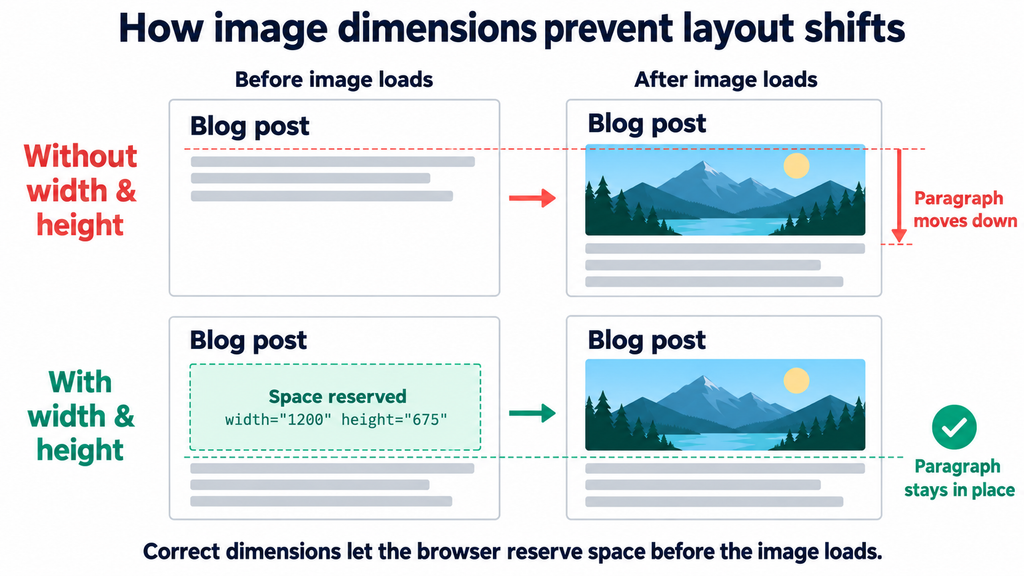
The width and height attributes establish the aspect ratio. The CSS allows the image to shrink to fit a smaller screen.
Adding these attributes does not mean the image must display at 1200 pixels wide. With responsive styling, the browser can display it smaller while preserving its proportions.
Where to edit images in Blogger
Open the relevant post and switch to HTML view. Locate the image’s <img> tag and check its existing attributes.
If Blogger already added correct width and height values, keep them. Do not add duplicate attributes.
For the example above, an image displayed at 360 pixels wide would need about 203 pixels of height. Knowing that ratio lets the browser leave space before the image appears.
Make post images responsive
If your theme uses .post-body for article content, this CSS is a useful starting point:
.post-body img {
  max-width: 100%;
  height: auto;
}
Blogger supports theme editing through Theme → Edit HTML. In themes with a <b:skin> section, CSS can be added inside that section, before its closing ]]></b:skin> marker. Do not paste a separate <style> tag inside the CSS section. Blogger Help
The class name depends on your theme. Check the article container with Inspect if .post-body does not match your layout.
This CSS makes images responsive; it does not replace correct dimensions.
Step 4: Use Lazy Loading Without Creating New Shifts
Lazy loading delays images until they are approaching the visible part of the page.
It can reduce unnecessary downloads, but lazy-loaded images still need reserved space.
For an image farther down an article:
<img
  src="YOUR-IMAGE-URL"
  alt="Layout shift results in Chrome DevTools"
  width="1200"
  height="800"
  loading="lazy"
  style="max-width:100%; height:auto;"
/>
Avoid adding loading="lazy" to the main image readers see immediately when the page opens. Delaying an important above-the-fold image can hurt Largest Contentful Paint, another Core Web Vital.
Also check whether your Blogger theme already uses a lazy-loading script. Adding a second system can create unnecessary conflicts. Google’s guidance recommends dimensions for lazy-loaded images and avoiding lazy loading for images likely to be in the initial viewport. web.dev
Step 5: Give Homepage Thumbnails a Consistent Shape
Homepage cards may jump if their thumbnails start with no height and expand after loading.
For a design that intentionally uses 16:9 thumbnails, you can reserve that shape:
<div class="blog-card-image">
  <img
    src="YOUR-THUMBNAIL-URL"
    alt="Blogger layout shift tutorial"
    width="1200"
    height="675"
    loading="lazy"
  />
</div>.blog-card-image {
aspect-ratio: 16 / 9;
overflow: hidden;
}
.blog-card-image img {
display: block;
width: 100%;
height: 100%;
object-fit: cover;
}This is an example for a custom thumbnail component. Adapt the class names and markup to your theme.
object-fit: cover crops the image to fill the thumbnail. Use this for cards where cropping is acceptable, rather than for article screenshots that readers need to see in full.
Step 6: Reserve Space for Manual Ads
Advertisements often arrive after the surrounding content. If their container starts at zero height, the article can move when they appear.
For a manual ad slot, reserve space in the page’s initial HTML and CSS:
<div class="blog-ad-space">
  <!-- Insert your existing manual ad unit code here. -->
</div>
.blog-ad-space {
  min-height: 250px;
  margin: 24px 0;
}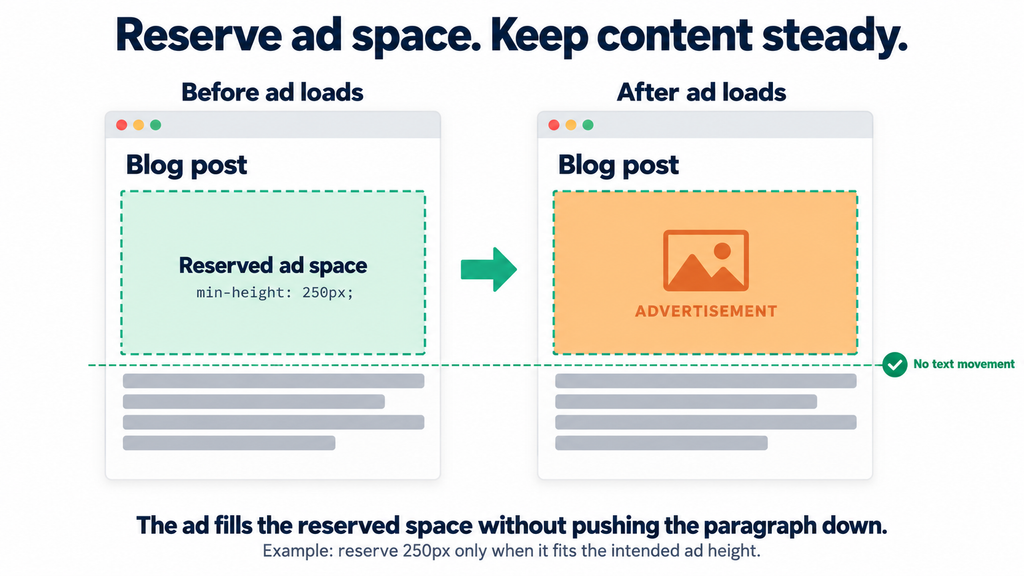
The 250-pixel value is only an example. It is appropriate only when it accommodates the ad height used in that placement.
If the ad becomes 280 pixels tall, a 250-pixel reservation is too small. The surrounding content can still move.
Google’s publisher guidance recommends reserving enough space for ads and explains the trade-off: larger reservations reduce movement but can leave extra whitespace when smaller ads appear. This principle applies to layout design; the Google Publisher Tag implementation itself is separate from AdSense. developers.google.com
The placeholder must exist before the ad loads
Adding an empty container with JavaScript after the article appears can itself push the article down.
Place the wrapper in the original page layout, and make its sizing CSS available early.
Also inspect scripts that move ads into posts after loading. A reserved gadget in one location does not protect the article if its contents are later moved somewhere else.
Do not force every ad into one global height
Avoid a blanket rule such as:
/* Avoid using this as a universal fix. */
.adsbygoogle {
  height: 250px !important;
  overflow: hidden;
}
Different placements may need different dimensions. Clipping an ad or overriding all ad units does not solve the underlying layout problem.
Use a dedicated wrapper for each placement and match it to the intended ad size.
Step 7: Use Predictable Ad Dimensions Where Needed
For a sensitive placement, such as an ad near the beginning of a post, predictable dimensions can make space reservation easier.
AdSense documents an approved method for setting responsive display-ad dimensions with CSS media queries. Follow that method when changing the ad unit itself, rather than inventing modifications to its iframe or internal elements. Google AdSense Help
For example, your layout plan might be:
| Placement condition | Planned ad size | Reserved height |
|---|---|---|
| Narrow content column | 300 × 250 | 250px |
| Wide content column | 728 × 90 | 90px |
These are example design choices, not sizes every Blogger theme can accommodate.
Check the content column’s width, not just the browser’s width. A desktop screen may be wide enough for a 728-pixel ad while the article column beside a sidebar is not.
The ad unit’s sizing rules and the wrapper’s reservation must agree. Changing only the wrapper does not force an unrestricted responsive ad to use that size.
Responsive AdSense units normally determine their size from available layout space. They need a measurable container when the ad code runs. Google AdSense Help
Step 8: Review Auto Ads Separately
A wrapper around one manual ad cannot reserve space for every Auto ad.
Auto ads can choose placements elsewhere on the page, so investigate them through AdSense’s placement controls.
If an in-page Auto ad repeatedly appears in a troublesome area:
- Open AdSense → Ads.
- Edit the settings for your site.
- Review the ad settings preview.
- Use Excluded areas to exclude the relevant area.
- Apply the change and retest.
AdSense supports excluding areas from in-page Auto ads. This can help you prevent automatic placement in a part of the layout that needs more stability. Google AdSense Help
Review the Allow Google to optimize existing ads setting too, where available. AdSense documents this as a control for optimizing existing ad units together with Auto ads. Check it when comparing your planned manual placements with what actually appears. Google AdSense Help
You do not necessarily need to disable all advertising. Start with the placement your recording identifies as causing movement, then compare stability and earnings after the change.
Step 9: Avoid Collapsing Empty Ad Space Suddenly
Consider this sequence:
- The article loads with a reserved ad area.
- No ad is returned.
- A script removes the empty area.
- The article moves upward.
The direction changed, but the reader still experienced a jump.
Keeping reserved space can avoid this second movement. If the blank area looks excessive, reconsider the placement or reservation rather than automatically collapsing it while the reader is viewing the page. Google’s CLS guidance specifically cautions against collapsing reserved space when content is not returned. web.dev
Common Fixes That Do Not Solve the Whole Problem
Compressing images without adding dimensions
A smaller file may load sooner, but file size and layout size are different issues. An image still needs predictable space.
Delaying all ads by several seconds
If there is no reserved space, delaying an ad can simply make the jump happen later, while someone is reading.
Adding dimensions after an image loads
A script that waits for an image to finish loading cannot reliably prevent the earlier layout movement. Put dimensions in the initial markup.
Testing only the homepage
Article pages can use different image, ad, and sidebar layouts. Test each important page type.
Assuming one good test proves the issue is fixed
Ad delivery varies. Repeat your checks and include scrolling, rather than relying only on one initial-load result.
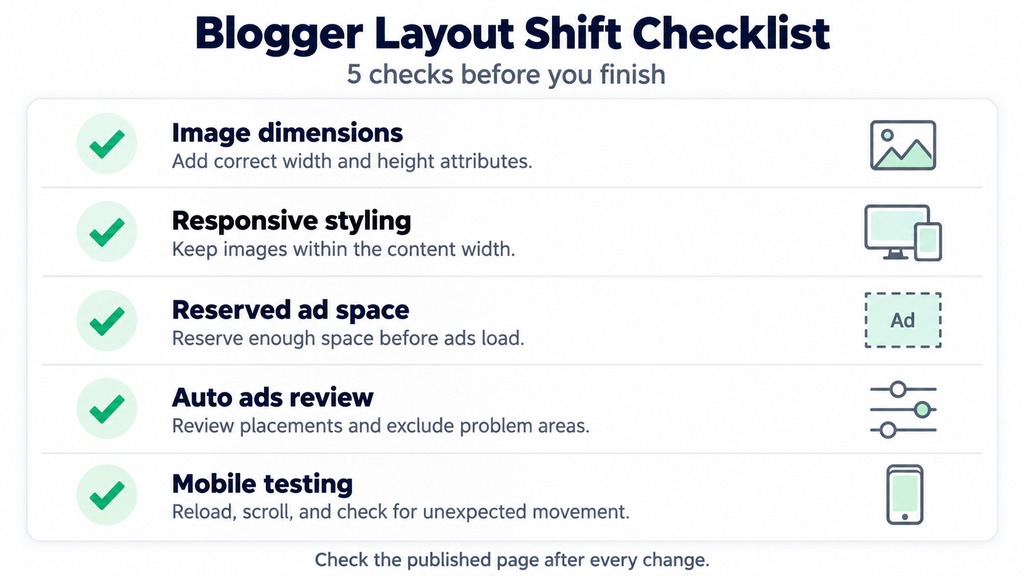
How to Check Whether Your Blogger CLS Fix Worked
Use the same pages and similar conditions for your before-and-after checks.
- Reload with ads enabled.
- Test mobile and desktop layouts.
- Scroll through the full article.
- Watch images and advertisements as they appear.
- Record another Chrome Performance trace.
- Check for new issues such as cropped images or horizontal scrolling.
- Monitor real-user CLS after deployment.
A lab test can show an improvement immediately. Field results update gradually as new visits enter the rolling reporting window; they do not reset when you save your theme. developers.google.com
Keep a simple record of what changed. For example: “Added dimensions to article images” or “Reserved space for the first manual ad.” This makes it easier to identify which edit helped.
Frequently Asked Questions
What is a good CLS score for Blogger?
A CLS score of 0.1 or less is considered good. Blogger uses the same CLS thresholds as other websites. Aim to meet that target for real visitors, not only in one test. Articles
Can I fix layout shifts without removing AdSense?
Often, yes. Start by identifying the problematic placement, reserving sufficient space, and reviewing ad sizing. For Auto ads, use placement controls where appropriate. The exact result depends on your theme and ad setup.
Is height: auto enough to fix image layout shifts?
No. It helps an image scale proportionally, but the browser still needs dimensions or another reliable way to know the intended aspect ratio before loading.
Does lazy loading cause CLS?
Lazy loading can expose missing space reservations as images appear during scrolling. With correct dimensions and suitable styling, lazy-loaded images can load without pushing nearby content around.
Why is my CLS good in a test but poor for real visitors?
A short test may miss later activity, such as scrolling and delayed ad delivery. Real visitors also use different devices and encounter different content. Compare field data with a longer interactive recording instead of assuming either result is wrong. web.dev
Should I give every image the same width and height?
No. Use dimensions that match each image’s proportions. A portrait photograph, a landscape screenshot, and a square graphic should not all receive the same aspect ratio.
Can changing my Blogger theme fix CLS?
It can help if the existing theme creates unstable image containers or inserts content late. However, ads and custom widgets can still introduce shifts in a new theme. Test representative pages before switching.
Will fixing CLS guarantee more traffic?
No. It improves an aspect of page experience, but search traffic depends on many factors. Google explicitly says good Core Web Vitals do not guarantee top rankings. developers.google.com
Start with a published post where the jumping is easy to reproduce. Fix its image dimensions, reserve space for its manual ads, and review any disruptive Auto ad placements. Then test the same page again before applying broader changes.