How to Add Automatic Related Posts section in Blogger (2026)
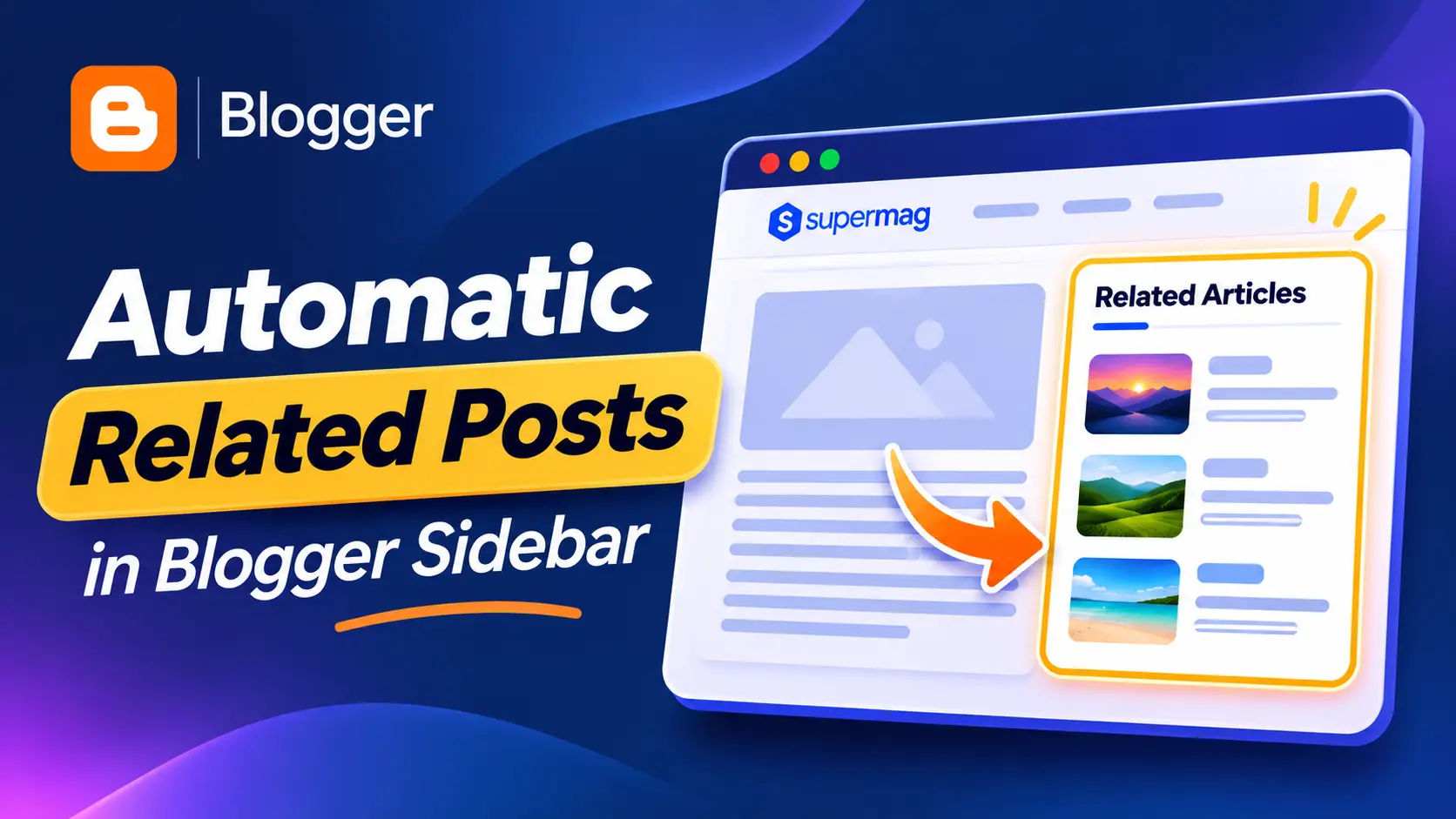
Want to display related articles automatically in your Blogger website?
Adding a Related Posts widget in Blogger is a simple way to help visitors discover more articles on your website. Instead of manually linking posts, you can automatically display articles based on their labels (categories).
In this tutorial, I’ll show you how to add a modern, responsive related posts section to your Blogger sidebar using HTML, CSS, and JavaScript.
The best part? You don’t need to update the widget whenever you publish a new post.
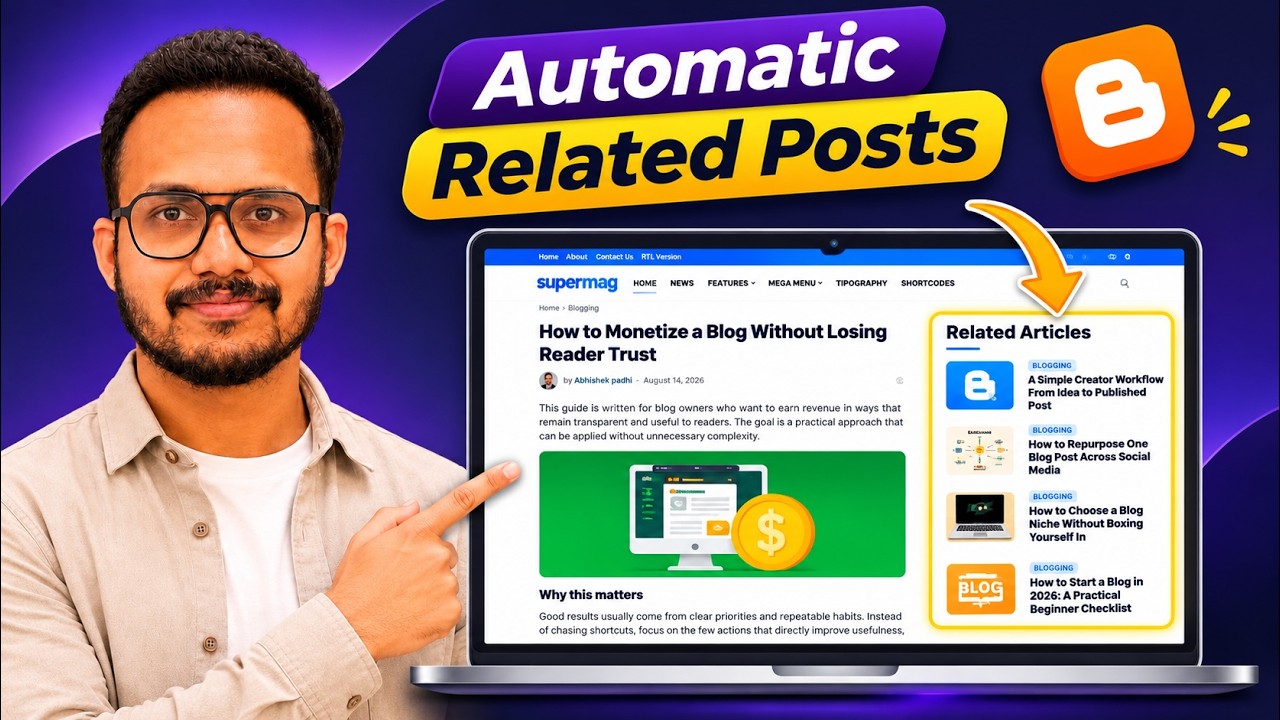
What Does the Related Posts Widget Look Like?
The widget displays a list of articles in your Blogger sidebar, including:
- Featured image or thumbnail
- Blog post title
- Category or label
- Clickable link to the article
It also includes a skeleton loading animation, which appears while the related articles are being fetched.
The widget automatically adapts to different screen sizes, making it suitable for desktop and mobile devices.
How to Add Automatic Related Posts in Blogger
Follow these simple steps to install the widget.
Step 1: Open Your Blogger Dashboard
First, visit Blogger.com and sign in to your account.
Select the blog where you want to add the related posts widget.
Step 2: Open the Layout Section
From the Blogger dashboard:
- Click Layout from the left sidebar.
- Find the Sidebar section of your theme.
- Click Add a Gadget.
- Select HTML/JavaScript from the available gadgets.
This will open a new window where you can insert custom code.
Step 3: Add the Related Posts Code
Copy the complete related posts widget code provided below and paste it into the Content section of the HTML/JavaScript gadget.
Copy Related Posts Code:
<style>
#kb-related-widget {
  --kb-accent: #2563eb;
  --kb-text: #172033;
  --kb-muted: #748094;
  --kb-border: #e9edf3;
  width: 100%;
  margin: 0 0 25px;
  font-family: inherit;
  color: var(--kb-text);
  contain: layout style;
}

#kb-related-widget * {
  box-sizing: border-box;
}

#kb-related-widget .kb-heading {
  display: flex;
  align-items: center;
  margin: 0 0 17px;
  padding-bottom: 12px;
  border-bottom: 1px solid var(--kb-border);
}

#kb-related-widget .kb-heading h3 {
  font-size: 19px;
  font-weight: 750;
  line-height: 1.4;
  margin: 0;
  color: var(--kb-text);
}

#kb-related-widget .kb-heading span {
  width: 32px;
  height: 3px;
  border-radius: 5px;
  background: var(--kb-accent);
  display: block;
  margin-top: 5px;
}

#kb-related-widget .kb-list {
  display: flex;
  flex-direction: column;
  gap: 15px;
  min-height: 440px;
}

#kb-related-widget .kb-item {
  display: flex;
  align-items: flex-start;
  gap: 12px;
  text-decoration: none;
  min-width: 0;
  min-height: 76px;
  padding: 0 0 15px;
  border-bottom: 1px solid var(--kb-border);
  transition: transform .2s ease;
}

#kb-related-widget .kb-item:last-child {
  border-bottom: 0;
  padding-bottom: 0;
}

#kb-related-widget .kb-item:hover {
  transform: translateX(3px);
}

#kb-related-widget .kb-thumb {
  width: 104px;
  height: 76px;
  flex: 0 0 104px;
  border-radius: 9px;
  object-fit: cover;
  background: #f0f2f5;
  transition: transform .25s ease;
}

#kb-related-widget .kb-item:hover .kb-thumb {
  transform: scale(1.035);
}

#kb-related-widget .kb-content {
  flex: 1;
  min-width: 0;
}

#kb-related-widget .kb-tag {
  display: inline-block;
  font-size: 10px;
  line-height: 1.5;
  font-weight: 700;
  text-transform: uppercase;
  letter-spacing: .5px;
  color: var(--kb-accent);
  background: #eff5ff;
  padding: 3px 7px;
  border-radius: 4px;
  margin-bottom: 5px;
}

#kb-related-widget .kb-title {
  display: -webkit-box;
  -webkit-box-orient: vertical;
  -webkit-line-clamp: 3;
  overflow: hidden;
  font-size: 13.5px;
  line-height: 1.55;
  font-weight: 700;
  color: var(--kb-text);
  margin: 0;
  transition: color .2s ease;
}

#kb-related-widget .kb-item:hover .kb-title {
  color: var(--kb-accent);
}

/* Skeleton loading */
#kb-related-widget .kb-skeleton {
  pointer-events: none;
}

#kb-related-widget .kb-skeleton-thumb {
  width: 104px;
  height: 76px;
  flex: 0 0 104px;
  border-radius: 9px;
}

#kb-related-widget .kb-skeleton-content {
  flex: 1;
  min-width: 0;
  padding-top: 3px;
}

#kb-related-widget .kb-skeleton-tag {
  width: 65px;
  height: 15px;
  border-radius: 4px;
  margin-bottom: 9px;
}

#kb-related-widget .kb-skeleton-line {
  height: 11px;
  border-radius: 5px;
  margin-bottom: 8px;
}

#kb-related-widget .kb-skeleton-line.short {
  width: 70%;
}

#kb-related-widget .kb-skeleton-thumb,
#kb-related-widget .kb-skeleton-tag,
#kb-related-widget .kb-skeleton-line {
  background: linear-gradient(
    90deg,
    #edf0f4 25%,
    #f7f8fa 50%,
    #edf0f4 75%
  );
  background-size: 200% 100%;
  animation: kb-shimmer 1.4s ease-in-out infinite;
}

@keyframes kb-shimmer {
  0% { background-position: 100% 0; }
  100% { background-position: -100% 0; }
}

@media (max-width: 480px) {
  #kb-related-widget .kb-thumb,
  #kb-related-widget .kb-skeleton-thumb {
    width: 112px;
    height: 80px;
    flex-basis: 112px;
  }

  #kb-related-widget .kb-title {
    font-size: 13px;
  }
}

@media (prefers-reduced-motion: reduce) {
  #kb-related-widget *,
  #kb-related-widget *::before {
    animation: none !important;
    transition: none !important;
  }
}
</style>

<div id="kb-related-widget" aria-busy="true">
  <div class="kb-heading">
    <div>
      <h3>Related Articles</h3>
      <span></span>
    </div>
  </div>

  <div class="kb-list" aria-live="polite">

    <div class="kb-item kb-skeleton" aria-hidden="true">
      <div class="kb-skeleton-thumb"></div>
      <div class="kb-skeleton-content">
        <div class="kb-skeleton-tag"></div>
        <div class="kb-skeleton-line"></div>
        <div class="kb-skeleton-line short"></div>
      </div>
    </div>

    <div class="kb-item kb-skeleton" aria-hidden="true">
      <div class="kb-skeleton-thumb"></div>
      <div class="kb-skeleton-content">
        <div class="kb-skeleton-tag"></div>
        <div class="kb-skeleton-line"></div>
        <div class="kb-skeleton-line short"></div>
      </div>
    </div>

    <div class="kb-item kb-skeleton" aria-hidden="true">
      <div class="kb-skeleton-thumb"></div>
      <div class="kb-skeleton-content">
        <div class="kb-skeleton-tag"></div>
        <div class="kb-skeleton-line"></div>
        <div class="kb-skeleton-line short"></div>
      </div>
    </div>

    <div class="kb-item kb-skeleton" aria-hidden="true">
      <div class="kb-skeleton-thumb"></div>
      <div class="kb-skeleton-content">
        <div class="kb-skeleton-tag"></div>
        <div class="kb-skeleton-line"></div>
        <div class="kb-skeleton-line short"></div>
      </div>
    </div>

    <div class="kb-item kb-skeleton" aria-hidden="true">
      <div class="kb-skeleton-thumb"></div>
      <div class="kb-skeleton-content">
        <div class="kb-skeleton-tag"></div>
        <div class="kb-skeleton-line"></div>
        <div class="kb-skeleton-line short"></div>
      </div>
    </div>

  </div>
</div>

<script>
(function () {
  'use strict';

  var widget = document.getElementById('kb-related-widget');
  if (!widget) return;

  var list = widget.querySelector('.kb-list');

  var MAX_POSTS = 5;
  var MAX_PER_LABEL = 30;
  var FALLBACK_POSTS = 30;

  var results = {};
  var completed = false;

  var currentURL = normalizeURL(
    document.querySelector('link[rel="canonical"]')?.href ||
    window.location.href
  );

  var labelElements = document.querySelectorAll(
    '.post-labels a, .post-footer a[rel="tag"], a[rel="tag"]'
  );

  var labels = [];

  labelElements.forEach(function (el) {
    var label = el.textContent.trim();

    if (label && labels.indexOf(label) === -1) {
      labels.push(label);
    }
  });

  function normalizeURL(url) {
    try {
      var parsed = new URL(url, window.location.href);
      return parsed.origin + parsed.pathname.replace(/\/+$/, '');
    } catch (e) {
      return url;
    }
  }

  function getText(value) {
    return value && value.$t ? value.$t : '';
  }

  function getPostURL(entry) {
    var links = entry.link || [];

    var link = links.find(function (item) {
      return item.rel === 'alternate';
    });

    return link ? link.href : '';
  }

  function getThumbnail(entry) {
    if (entry.media$thumbnail) {
      return entry.media$thumbnail.url.replace(
        /\/s\d+(-c)?/,
        '/s320-c'
      );
    }

    var content =
      getText(entry.content) || getText(entry.summary);

    var match = content.match(
      /<img[^>]+src=["']([^"']+)["']/i
    );

    return match ? match[1] : '';
  }

  function getPostLabels(entry) {
    var categories = entry.category || [];

    return categories.map(function (category) {
      return category.term || '';
    }).filter(Boolean);
  }

  function getDisplayLabel(entry, preferredLabel) {
    var postLabels = getPostLabels(entry);

    if (!postLabels.length) {
      return 'Latest Posts';
    }

    if (preferredLabel) {
      var matchingLabel = postLabels.find(function (label) {
        return label.toLowerCase() ===
          preferredLabel.toLowerCase();
      });

      if (matchingLabel) return matchingLabel;
    }

    return postLabels[0];
  }

  function fetchFeed(feedURL) {
    return new Promise(function (resolve) {
      var callbackName =
        'kbRelatedCallback' +
        Math.random().toString(36).slice(2);

      var script = document.createElement('script');
      var finished = false;
      var timeout;

      function finish(data) {
        if (finished) return;

        finished = true;
        clearTimeout(timeout);

        delete window[callbackName];

        if (script.parentNode) {
          script.parentNode.removeChild(script);
        }

        resolve(data || []);
      }

      window[callbackName] = function (data) {
        finish(
          data && data.feed && data.feed.entry
            ? data.feed.entry
            : []
        );
      };

      script.onerror = function () {
        finish([]);
      };

      script.src =
        feedURL +
        (feedURL.indexOf('?') === -1 ? '?' : '&') +
        'alt=json-in-script&callback=' +
        callbackName;

      timeout = window.setTimeout(function () {
        finish([]);
      }, 10000);

      document.head.appendChild(script);
    });
  }

  function fetchLabel(label) {
    var url =
      window.location.origin +
      '/feeds/posts/default/-/' +
      encodeURIComponent(label) +
      '?max-results=' + MAX_PER_LABEL;

    return fetchFeed(url);
  }

  function fetchRecentPosts() {
    var url =
      window.location.origin +
      '/feeds/posts/default?max-results=' +
      FALLBACK_POSTS +
      '&orderby=published';

    return fetchFeed(url);
  }

  function addRelatedPosts(entries, label) {
    entries.forEach(function (entry) {
      var url = getPostURL(entry);

      if (!url || normalizeURL(url) === currentURL) return;

      var key = normalizeURL(url);

      if (!results[key]) {
        results[key] = {
          entry: entry,
          score: 0,
          bestLabel: getDisplayLabel(entry, label)
        };
      }

      results[key].score++;
    });
  }

  function addFallbackPosts(entries) {
    entries.forEach(function (entry) {
      var url = getPostURL(entry);

      if (!url || normalizeURL(url) === currentURL) return;

      var key = normalizeURL(url);

      if (!results[key]) {
        results[key] = {
          entry: entry,
          score: 0,
          bestLabel: getDisplayLabel(entry)
        };
      }
    });
  }

  function createPost(entry, matchedLabel) {
    var url = getPostURL(entry);
    var title = getText(entry.title);

    if (!url || !title) return null;

    var item = document.createElement('a');
    item.className = 'kb-item';
    item.href = url;

    var imageURL = getThumbnail(entry);

    if (imageURL) {
      var img = document.createElement('img');

      img.className = 'kb-thumb';
      img.src = imageURL;
      img.alt = title;
      img.loading = 'lazy';
      img.decoding = 'async';
      img.width = 104;
      img.height = 76;

      img.onerror = function () {
        img.style.display = 'none';
      };

      item.appendChild(img);
    } else {
      var placeholder = document.createElement('div');
      placeholder.className = 'kb-thumb';
      placeholder.setAttribute('aria-hidden', 'true');
      item.appendChild(placeholder);
    }

    var content = document.createElement('div');
    content.className = 'kb-content';

    var tag = document.createElement('span');
    tag.className = 'kb-tag';
    tag.textContent = matchedLabel;

    var heading = document.createElement('h4');
    heading.className = 'kb-title';
    heading.textContent = title;

    content.appendChild(tag);
    content.appendChild(heading);

    item.appendChild(content);

    return item;
  }

  function renderPosts() {
    if (completed) return;

    completed = true;

    var posts = Object.keys(results).map(function (key) {
      return results[key];
    });

    posts.sort(function (a, b) {
      return b.score - a.score;
    });

    var fragment = document.createDocumentFragment();

    posts.slice(0, MAX_POSTS).forEach(function (post) {
      var item = createPost(post.entry, post.bestLabel);

      if (item) {
        fragment.appendChild(item);
      }
    });

    list.replaceChildren(fragment);

    if (!list.children.length) {
      widget.remove();
      return;
    }

    widget.setAttribute('aria-busy', 'false');
  }

  function loadFallbackIfNeeded() {
    var relatedCount = Object.keys(results).filter(
      function (key) {
        return results[key].score > 0;
      }
    ).length;

    if (relatedCount >= MAX_POSTS) {
      renderPosts();
      return;
    }

    fetchRecentPosts().then(function (entries) {
      addFallbackPosts(entries);
      renderPosts();
    });
  }

  function initialize() {
    if (!labels.length) {
      loadFallbackIfNeeded();
      return;
    }

    Promise.all(
      labels.map(function (label) {
        return fetchLabel(label).then(function (entries) {
          addRelatedPosts(entries, label);
        });
      })
    ).then(function () {
      loadFallbackIfNeeded();
    });
  }

  initialize();

  window.setTimeout(function () {
    if (!completed) {
      renderPosts();
    }
  }, 15000);

})();
</script>
You can leave the gadget title blank because the code already includes a heading called “Related Articles.”
Click Save to apply the changes.
Step 4: Check the Related Posts Widget
Now open any published blog post on your Blogger website.
You should see the related articles section in your sidebar.
The widget automatically checks the labels assigned to your current article and displays other posts with matching labels.
If there aren’t enough matching posts, it can display recent articles instead.
Note: The widget works best on individual blog post pages where the current article’s labels are available in the page HTML.
How Does the Automatic Related Posts Widget Work?
The widget uses Blogger’s built-in post feeds to fetch articles automatically.
Here’s how it works:
- Detects post labels: JavaScript checks the labels associated with the current article.
- Finds matching articles: It retrieves posts from Blogger feeds that share those labels.
- Ranks related posts: Articles matching more of the current post’s labels receive higher priority.
- Removes duplicates: The same article won’t appear multiple times.
- Excludes the current post: Visitors won’t see the article they’re already reading.
- Displays recent posts when needed: If fewer than five related posts are available, the widget fills the remaining positions with recent articles.
This process happens automatically whenever a visitor opens a page containing the widget.
How to Customize the Related Posts Widget in Blogger
You can easily change the widget’s appearance and behavior by editing a few lines of code.
1. Change the Number of Related Posts
By default, the widget displays a maximum of five articles.
Find this line in the JavaScript section: var MAX_POSTS = 5;
To display four articles instead, change it to: var MAX_POSTS = 4;
You can increase or decrease this number depending on the available space in your sidebar.
2. Change the Widget Heading
The default widget heading is Related Articles.
Find:
<h3>Related Articles</h3>
Replace it with any heading you prefer, such as:
<h3>You May Also Like</h3>
Other examples include “Recommended Posts” or “More From This Blog.”
3. Change the Accent Color
The widget uses blue as its default accent color.
Find this CSS variable near the beginning of the code:
–kb-accent: #2563eb;
You can replace the hex color code with your preferred color.
For example:
- Orange:
#ff6600 - Green:
#16a34a - Purple:
#7c3aed - Red:
#dc2626
This changes the accent color used for elements such as the heading underline, category text, and hover effects.
4. Change the Post Thumbnail Size
By default, thumbnails are displayed at 104 × 76 pixels on desktop.
Find:
#kb-related-widget .kb-thumb {
  width: 104px;
  height: 76px;
  flex: 0 0 104px;
}
You can change these values to make the images larger or smaller.
For example, to use 90 × 70 pixel thumbnails:
width: 90px;
height: 70px;
flex: 0 0 90px;
Make sure to adjust the thumbnail and skeleton thumbnail dimensions consistently. The code also contains separate mobile thumbnail settings inside a media query.
5. Change the Post Title Font Size
To customize the article title size, find:
#kb-related-widget .kb-title {
  font-size: 13.5px;
}
Increase the value for larger titles or decrease it for a more compact layout.
For example: font-size: 15px;
The widget also has a separate mobile font-size setting, which you can adjust if needed.
6. Change the Space Between Articles
By default, the widget uses a 15px gap between articles.
Find:
#kb-related-widget .kb-list {
  gap: 15px;
}
For a more compact layout, change the gap to 10px.
For more spacing, increase it to 20px.
7. Customize the Number of Posts Fetched
The widget uses these JavaScript settings:
var MAX_POSTS = 5;
var MAX_PER_LABEL = 30;
var FALLBACK_POSTS = 30;
Here’s what each setting means:
| Setting | Purpose |
|---|---|
| MAX_POSTS | Maximum number of articles displayed |
| MAX_PER_LABEL | Maximum articles requested from each matching label |
| FALLBACK_POSTS | Maximum recent articles requested when needed |
For most Blogger websites, the default settings should work well.
Features of This Blogger Related Posts Widget
Unlike a basic recent posts widget, this version includes several useful features:
- Automatic related articles: Finds posts using matching labels.
- Responsive design: Adjusts to different screen sizes.
- Skeleton loading: Shows animated placeholders while content loads.
- Lazy-loaded images: Loads thumbnails efficiently.
- Duplicate prevention: Avoids displaying the same article multiple times.
- Fallback posts: Displays recent posts when there aren’t enough matching articles.
- Lightweight implementation: Uses HTML, CSS, JavaScript, and Blogger’s existing feeds without requiring an external widget service.
Frequently Asked Questions
Conclusion
Adding automatic related posts in Blogger is an easy way to improve your blog’s navigation and help readers discover more relevant content.
With this widget, you can display matching articles in your sidebar without manually updating links every time you publish a new post.
You can also customize the colors, thumbnail sizes, article count, and layout to match your Blogger theme.
If you prefer a visual walkthrough, watch my YouTube tutorial below.
Video Tutorial:
Have questions or need help customizing the widget? Let me know in the comments!
Read Next – How to create a custon widgets section in Blogger website