Design a Blogger Author Profile Page (Complete Guide)
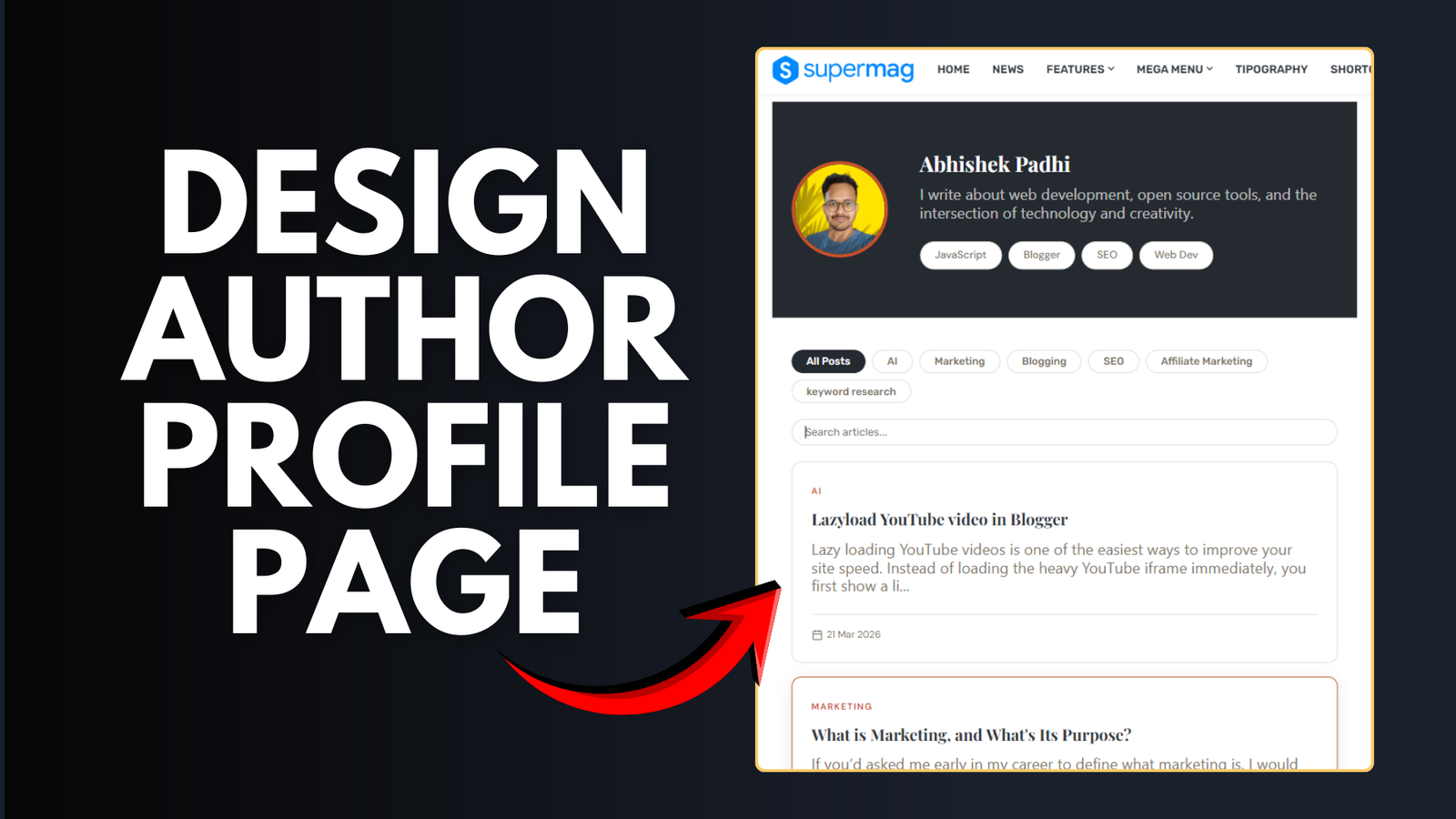
Creating a clean and professional author profile page in Blogger helps build trust, improve branding, and even boost SEO. Whether you run a personal blog or a niche site, a well-designed author page makes a big difference.
Let’s go step by step in a simple way.
What is an Author Profile Page?
An author profile page is a dedicated page that shows:
- Your name and photo
- Short bio
- Social links
- List of posts written by you
A good author page is not just about looks. It directly impacts how people trust and interact with your blog.
- It builds credibility and trust with your audience
- Helps readers connect with you personally
- Improves SEO by establishing author identity
- Increases time spent on your website
- Useful if you plan to grow a personal brand
If you’re serious about blogging, this page is not optional. It’s essential.
How to Create Author Page in Blogger
Go to your Blogger dashboard and create a new page. Name it something like “About Me”, “Author Name” or Author Bio etc.
Switch to HTML view and add the below code.
<style>
  @import url('https://fonts.googleapis.com/css2?family=Playfair+Display:wght@700;900&family=DM+Sans:wght@400;500;600&display=swap');

  :root {
    --ink: #242a30;
    --accent: #c8502a;
    --muted: #7a7267;
    --border: #e2ddd6;
    --card-bg: #ffffff;
    --shadow: 0 4px 20px rgba(15,14,13,.08);
    --radius: 12px;
  }

  /* --- Base Layout --- */
  #ap-container { font-family: system-ui; color: var(--ink); background: #fbfbfb; line-height: 1.6; padding-bottom: 20px; }
  .inner-wrap { max-width: 900px; margin: 0 auto; padding: 0 24px; }

  /* --- Hero Section --- */
  .ap-hero { background: var(--ink); color: #fff; padding: 60px 0; position: relative; }
  .ap-hero-content { display: flex; align-items: center; gap: 40px; flex-wrap: wrap; }
  .ap-avatar { width: 120px; height: 120px; min-height: 120px; border-radius: 50%; border: 4px solid var(--accent); object-fit: cover; }
  .ap-name { font-family: 'Playfair Display', serif; font-size: clamp(32px, 5vw, 48px); margin: 0 0 10px !important; color: white !important; }
  .ap-tagline { color: rgba(255,255,255,0.7); max-width: 500px; margin-bottom: 20px!important; font-size: 17px !important;}
  .ap-controls { display: flex; justify-content: space-between; align-items: center; padding: 40px 0 20px; flex-wrap: wrap; gap: 20px; }
  .ap-filters { display: flex; gap: 8px; flex-wrap: wrap; }
  .ap-filter-btn {
    padding: 6px 18px; border-radius: 20px; border: 1.5px solid var(--border);
    background: #fff; cursor: pointer; transition: 0.2s; font-size: 13px; font-weight: 500; color: var(--muted);
  }
  .ap-filter-btn.active { background: var(--ink); color: #fff; border-color: var(--ink); }
  .ap-search { padding: 8px 16px; border-radius: 20px; border: 1.5px solid var(--border); outline: none; width: 100%; transition: 0.3s; }
  .ap-search:focus { border-color: var(--accent); width: 100%; }
  .ap-grid { display: grid; grid-template-columns: repeat(auto-fill, minmax(350px, 1fr)); gap: 20px; padding-bottom: 40px; }
  .ap-card {
    background: var(--card-bg); border-radius: var(--radius); border: 1px solid var(--border);
    text-decoration: none; color: inherit; transition: 0.3s; display: flex; flex-direction: column;
  }
  .ap-card:hover { transform: translateY(-3px); box-shadow: var(--shadow); border-color: var(--accent); text-decoration: none !important; }
  .ap-card-body { padding: 24px; }
  .ap-card-cat { color: var(--accent); font-size: 11px; text-transform: uppercase; font-weight: 600; letter-spacing: 1.5px; }
  .ap-card-title { font-family: 'Playfair Display', serif; font-size: 20px!important; margin: 12px 0; line-height: 1.3; font-weight: 700; }
  .ap-card-snippet { font-size: 17px !important; color: var(--muted); margin-bottom: 20px; display: -webkit-box; -webkit-line-clamp: 3; -webkit-box-orient: vertical; overflow: hidden; }
  .ap-card-footer { font-size: 12px; color: var(--muted); border-top: 1px solid var(--border); padding-top: 15px; margin-top: auto; display: flex; align-items: center; gap: 5px; }
  .ap-btn-load { display: block; margin: 20px auto 80px; padding: 12px 40px; border-radius: 30px; background: var(--ink); color: #fff; border: none; cursor: pointer; font-weight: 600; transition: 0.2s; }
  .ap-btn-load:hover { background: var(--accent); }
  .ap-loading { text-align: center; padding: 80px; color: var(--muted); grid-column: 1 / -1; }

  @media (max-width: 600px) {
    .ap-hero-content { text-align: center; justify-content: center; }
    .ap-search { width: 100%; }
    .ap-grid { grid-template-columns: 1fr; }
  }
</style>

<div id="ap-container">
  <section class="ap-hero">
    <div class="inner-wrap ap-hero-content">
      <img alt="" class="ap-avatar" id="ap-avatar" src="" />
      <div class="ap-info">
        <h2 class="ap-name" id="ap-name"></h2>
        <p class="ap-tagline" id="ap-tagline"></p>
        <div class="ap-filters" id="ap-skills"></div>
      </div>
    </div>
  </section>

  <main class="inner-wrap">
    <div class="ap-controls">
      <div class="ap-filters" id="ap-filters">
        <button class="ap-filter-btn active" onclick="setFilter('all', this)">All Posts</button>
      </div>
      <input placeholder="Search Articles" class="ap-search" id="ap-search" type="text" />
    </div>

    <div class="ap-grid" id="ap-grid">
      <div class="ap-loading">Gathering articles...</div>
    </div>

    <button class="ap-btn-load" id="ap-load-more" style="display: none;">Load More Articles</button>
  </main>
</div>

<script>
const CONFIG = {
  name: "Abhishek Padhi",
  bio: "I write about web development, open source tools, and the intersection of technology and creativity.",
  img: "https://key2blogging.com/wp-content/uploads/2022/10/key2Blogging-Logo-1.png",
  url: "https://backlinkidea.blogspot.com",
  author: "Abhishek",
  perPage: 12,
  skills: ["JavaScript", "Blogger", "SEO", "Web Dev"]
};

let state = {
  all: [],
  filtered: [],
  page: 1,
  activeCat: 'all'
};
const fetchPosts = async (startIndex = 1) => {
  try {
    const response = await fetch(`${CONFIG.url}/feeds/posts/default?alt=json&max-results=150&start-index=${startIndex}`);
    const data = await response.json();
    const entries = data.feed.entry || [];
    const mine = entries.filter(e => e.author.some(a => a.name.$t === CONFIG.author))
      .map(e => ({
        title: e.title.$t,
        link: e.link.find(l => l.rel === 'alternate').href,
        cats: e.category ? e.category.map(c => c.term) : [],
        date: new Date(e.published.$t).toLocaleDateString('en-IN', {day:'numeric', month:'short', year:'numeric'}),
        snippet: e.summary ? e.summary.$t.replace(/<[^>]+>/g, '').slice(0, 160) :
                 (e.content ? e.content.$t.replace(/<[^>]+>/g, '').slice(0, 160) : '')
      }));
    state.all = [...state.all, ...mine];
    if (entries.length === 150) {
      fetchPosts(startIndex + 150);
    } else {
      initUI();
    }
  } catch (err) {
    document.getElementById('ap-grid').innerHTML = '<div class="ap-loading">Failed to load posts. Please refresh.</div>';
  }
};
const render = () => {
  const query = document.getElementById('ap-search').value.toLowerCase().trim();
  state.filtered = state.all.filter(p => {
    const matchCat = state.activeCat === 'all' || p.cats.includes(state.activeCat);
    const matchSearch = p.title.toLowerCase().includes(query) || p.snippet.toLowerCase().includes(query);
    return matchCat && matchSearch;
  });
  const slice = state.filtered.slice(0, state.page * CONFIG.perPage);
  const grid = document.getElementById('ap-grid');
  if (slice.length === 0) {
    grid.innerHTML = `<div class="ap-loading">No articles found matching your criteria.</div>`;
    document.getElementById('ap-load-more').style.display = 'none';
    return;
  }
  grid.innerHTML = slice.map(p => `
    <a href="${p.link}" class="ap-card" target="_blank">
      <div class="ap-card-body">
        <span class="ap-card-cat">${p.cats[0] || 'Article'}</span>
        <h3 class="ap-card-title">${p.title}</h3>
        <p class="ap-card-snippet">${p.snippet}...</p>
        <div class="ap-card-footer">
          <svg width="14" height="14" viewBox="0 0 24 24" fill="none" stroke="currentColor" stroke-width="2"><rect x="3" y="4" width="18" height="18" rx="2"/><path d="M16 2v4M8 2v4M3 10h18"/></svg>
          ${p.date}
        </div>
      </div>
    </a>
  `).join('');
  document.getElementById('ap-load-more').style.display = (slice.length < state.filtered.length) ? 'block' : 'none';
};
window.setFilter = (cat, btn) => {
  state.activeCat = cat;
  state.page = 1;
  document.querySelectorAll('.ap-filter-btn').forEach(b => b.classList.remove('active'));
  btn.classList.add('active');
  render();
};
const initUI = () => {
  document.getElementById('ap-name').textContent = CONFIG.name;
  document.getElementById('ap-tagline').textContent = CONFIG.bio;
  document.getElementById('ap-avatar').src = CONFIG.img;
  const skillWrap = document.getElementById('ap-skills');
  CONFIG.skills.forEach(skill => {
    const span = document.createElement('span');
    span.className = 'ap-filter-btn';
    span.style.cursor = 'default';
    span.textContent = skill;
    skillWrap.appendChild(span);
  });
  const cats = [...new Set(state.all.flatMap(p => p.cats))].slice(0, 8);
  const filterWrap = document.getElementById('ap-filters');
  cats.forEach(c => {
    const btn = document.createElement('button');
    btn.className = 'ap-filter-btn';
    btn.textContent = c;
    btn.onclick = () => setFilter(c, btn);
    filterWrap.appendChild(btn);
  });

  render();
};

document.getElementById('ap-search').addEventListener('input', () => {
  state.page = 1;
  render();
});

document.getElementById('ap-load-more').addEventListener('click', () => {
  state.page++;
  render();
});

fetchPosts();
</script>
Make sure to Change Author Name, Description, Profile Image URL, Author label (Case sensitive) in the above code.
Follow the video tutorial for step by step instruction.

If you are facing any compatibility issue with the above code then check if there is any similar class or elements used on your existing Blogger theme. Rename that class can solve the issue.
If you still have doubts, feel free to ask me in the comment section.
Read Also: How to Add a Custom Author box Widget in Blogger Sidebar?